 Free · MIT · macOS 14+
See what's using your ports.
Kill it in one click.
Every TCP listener your user owns — sorted by port, with the working directory it was launched from. Kill the orphan dev server squatting on port 5173 without opening a terminal.
- Native Swift 6 · no Electron
- Signed & notarized
- Universal — Apple Silicon & Intel
- Zero telemetry · zero network
The port is in use. You don't know what's using it.
You ran npm run dev. It failed. "Port 3000 is already in use."
You vaguely remember spinning up a Next.js project yesterday — in a tab
you've since closed. Now you're typing lsof -i :3000,
copying a PID, running kill -9, and hoping it's not your
database.
There's a faster way.
One icon. Everything you need.
Port Watcher lives in your menu bar. It's always there, always current, never in the way.
Click the menu bar icon
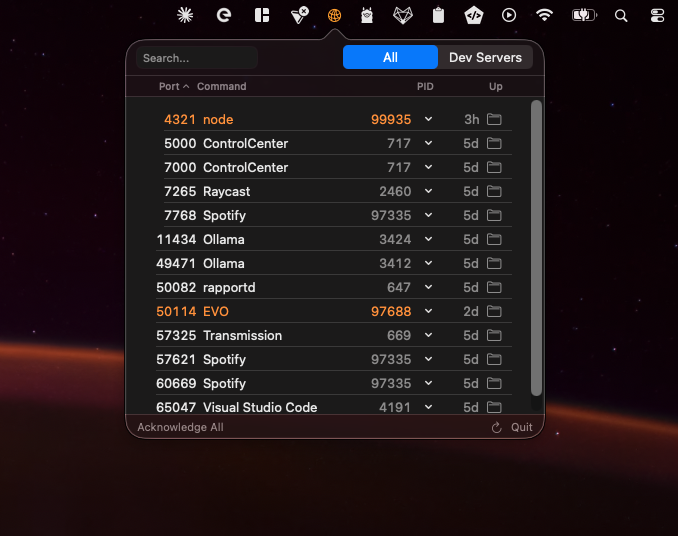
Every TCP listener owned by your user, sorted by port, refreshed every 5 seconds.
Scan the list
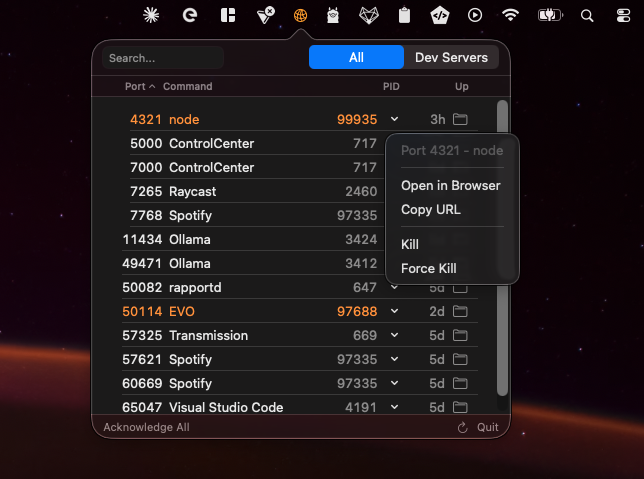
Port, command, PID, uptime, and the directory it was launched from — at a glance.
Kill what you don't need
Click for a polite SIGTERM. Right-click for SIGKILL. The list updates immediately.
Notices what you wouldn't.
Port Watcher doesn't just list ports when you ask. It runs in the background and tells you when something changes — the icon flashes when a port appears or dies, and turns orange when a process you've never seen before starts listening.
- Icon flashes on port changes — even with the popover closed
- Orange highlight on unfamiliar commands — spot the rogue Electron app
- Acknowledge list — one click marks the new processes as "I know about these now"
- Ignore list — VPN, Spotify, syncthing always listen and you don't care
Built around how developers actually work.
A focused replacement for lsof -iTCP -sTCP:LISTEN and kill -9 — designed to disappear the second you don't need it.
Dev Servers filter
One click hides system noise. Shows only the common dev-server ranges — 3000s, 4000s, 5000s, 8000s, 9000s — for the 'what did I leave running?' check before you close the laptop.
Catches unfamiliar processes
The menu bar icon turns orange when a command appears that isn't on your familiar list. Spot the rogue Electron app or background helper that started listening without you noticing.
Notices port changes
The icon flashes briefly when the port list changes — a server appears, an existing one dies. You'll notice when something starts listening, even with the popover closed.
Ignore list
Some processes always listen and you don't care — your VPN, Spotify, syncthing. Right-click to hide them from the list. Clear the ignore list any time from the footer.
Kill, force-kill, open
Click for SIGTERM, right-click for SIGKILL. Or open the URL in your browser, copy it, or reveal the working directory in Finder. No sudo needed for your own processes.
Free, MIT, no telemetry
Source on GitHub. Signed by GreenFlux, notarized by Apple — no Gatekeeper dance. No account, no nag screen, no network code in the binary.
More than a list.
Other tools tell you what's listening when you ask. Port Watcher also tells you what's changed — background alerts on new ports, orange flags on unfamiliar processes, and an acknowledge list so the noise you already know about stays quiet.
vs. lsof in the terminal
lsof -iTCP -sTCP:LISTEN -n -P works — it's exactly what
Port Watcher calls under the hood. The difference is that you don't
remember the flags, parse the output, hunt down the PID, switch tools
to ps for the command name, then run kill
separately.
Same data. One click. Working directory thrown in.
vs. Activity Monitor
Activity Monitor shows every process on your machine — including the
600 things you didn't start and don't care about. It doesn't show
ports. It doesn't show working directories. You can scroll past
kernel_task to find yours.
Scoped to TCP listeners you own. The thing you actually want.
vs. menu bar system monitors
Stats, iStat, and friends are great for CPU, memory, network throughput, disk I/O. Port Watcher does exactly one thing — listening processes — and doesn't try to be a system monitor.
Run both. They don't compete.
Get it running in 30 seconds.
Three ways to install. Pick the one that fits your setup.
Download
Grab the latest release, unzip, drag to /Applications. Signed and notarized.
Homebrew
Already on Homebrew? Tap and install — one command.
brew install --cask greenflux/tap/port-watcherBuild from source
MIT licensed Swift 6. Requires Xcode 15+ and macOS 14+.
git clone github.com/greenflux/port-watcher
cd port-watcher
make install
For working-directory resolution, grant Full Disk Access in System Settings → Privacy & Security. Optional — everything else works without it.
Common questions.
Is it really free?
Yes. MIT licensed, source on GitHub. No subscription, no account, no upgrade tier, no nag screen.
Does it send any data anywhere?
No. There is no network code in Port Watcher. It reads local system state via lsof and ps and renders the result. That's the entire app.
Why does it ask for Full Disk Access?
To read the working directory of processes outside your shell session. macOS gates the lsof -d cwd lookup for arbitrary processes behind Full Disk Access. Without it, the app still works — you just see 'Unknown' for some processes' working directory.
Does it need my password to kill processes?
No. Port Watcher only shows processes owned by your user, and you can kill your own processes without sudo.
Will it slow down my Mac?
No. It runs a couple of lsof and ps invocations every 5 seconds — the same commands you'd run by hand. Idle CPU is effectively zero.
Apple Silicon, Intel, or both?
Both. Universal binary, macOS 14 (Sonoma) or later.
Will there ever be a paid version?
The GitHub build will always be free and MIT licensed. A paid App Store version may exist for convenience (auto-updates, easy install) — same app, your choice.